Free Debt Snowball Spreadsheet (With an Avalanche Option)
A free debt payoff spreadsheet for Google Sheets and Excel. Switch between snowball and avalanche to see your payoff order, debt-free date and interest.

Paying off several debts is easier when you can see the finish line. This free spreadsheet takes your debts, your minimum payments and whatever extra you can manage, and works out the order to pay them in, the month each one disappears and how much interest you will pay along the way.
It does both popular methods. Pick Snowball to clear the smallest balance first, or Avalanche to clear the highest interest rate first, and the whole plan recalculates.
Download the free debt payoff spreadsheet (.xlsx)
No sign-up and no email needed. It works in Google Sheets and in Excel 2019 or newer, including Microsoft 365.
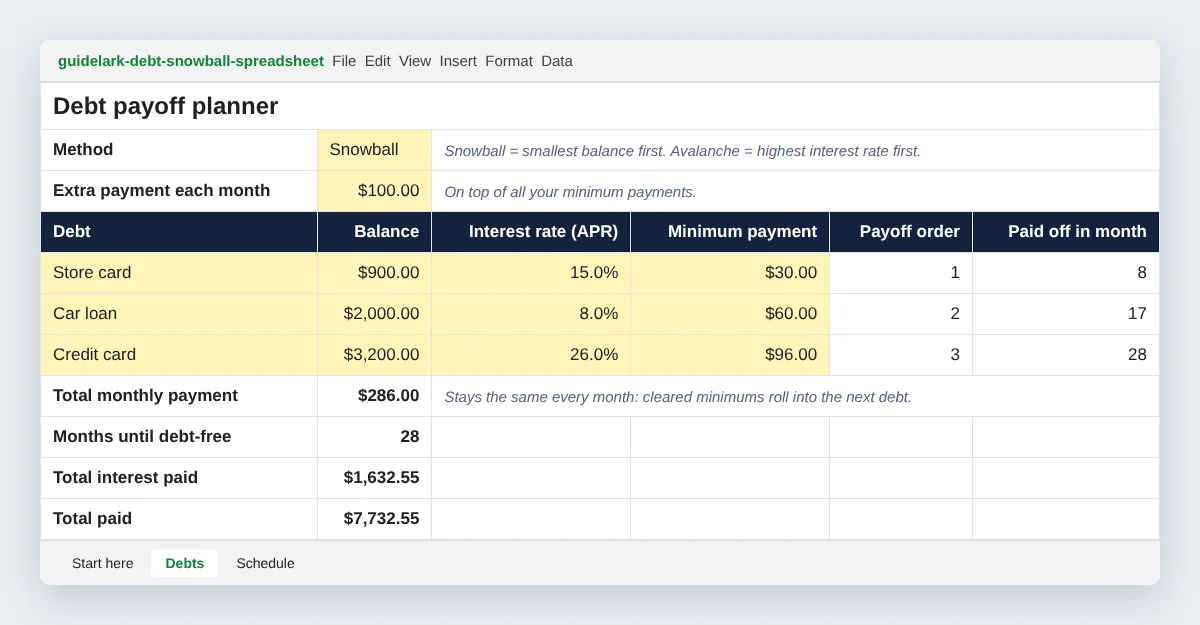
What's inside the spreadsheet
| Tab | What it does |
|---|---|
| Start here | Five short steps and a reminder of which cells to edit |
| Debts | Your method, your extra payment, up to six debts, and the results |
| Schedule | Every month in detail: interest, payments and balance for each debt, for up to 10 years |
Yellow cells are for you to type in. White cells calculate by themselves, so leave them alone. You never need to touch the Schedule tab. It is there so you can check the working.
How to open it
Google Sheets: open Google Drive, choose New, then File upload, and pick the file. Double-click it to open, then choose File, then Save as Google Sheets.
Excel: download the file and open it.
If you have never opened a spreadsheet in Google Sheets before, the free monthly budget template guide walks through it with more detail.
How to fill it in
1. Choose a method
Click the yellow cell next to Method and pick Snowball or Avalanche from the dropdown. Not sure which? Fill in your debts first, then try both. That's the point of the sheet. If you want the background, debt snowball vs avalanche explains how the two compare and what the research says.
2. Type your extra payment
This is the amount you can pay each month on top of all your minimums. Even $25 makes a difference. If you don't know yet, a budget for a small income is the way to find it.
3. List your debts
For each debt, type:
- Name, such as "Credit card" or "Phone plan"
- Balance, what you owe today
- Interest rate (APR), the yearly rate on your statement, typed as a percentage
- Minimum payment, the smallest amount you must pay each month
There is room for six debts. Leave unused rows empty.
4. Read the results
The sheet fills in:
- Payoff order: 1 is the debt you focus on first
- Paid off in month: when each debt hits zero, counting this month as month 1
- Total monthly payment: your minimums plus your extra
- Months until debt-free, total interest paid and total paid
A worked example
Here are the example debts already in the file. They are the same three debts used in our snowball vs avalanche comparison.
| Debt | Balance | Interest rate | Minimum |
|---|---|---|---|
| Store card | $900 | 15% | $30 |
| Car loan | $2,000 | 8% | $60 |
| Credit card | $3,200 | 26% | $96 |
The minimums add up to $186. With $100 extra, the total payment is $286 a month, and it stays $286 until everything is paid. When a debt is cleared, its minimum rolls into the next one.
Switching the method gives these results:
| Result | Snowball | Avalanche |
|---|---|---|
| Payoff order | Store card, car loan, credit card | Credit card, store card, car loan |
| First debt paid off | Month 8 | Month 21 |
| Months until debt-free | 28 | 27 |
| Total interest | $1,632.55 | $1,223.81 |
The avalanche saves $408.74 and a month, because the 26% credit card stops costing money sooner. The snowball gives you a fully paid debt in month 8 instead of month 21. Neither is wrong. It depends on whether the saving or the early win matters more to you.
Why these numbers are a little higher than in the comparison article. That article lets money left over from a cleared debt jump straight to the next debt in the same month. This sheet holds it until the following month, which is how most people actually pay: one payment per lender per month. It adds about a month and a little interest, so treat the sheet as a slightly cautious estimate.
How the spreadsheet works
You don't need to understand the formulas to use the sheet, but here is what happens on the Schedule tab, one row per month:
- Interest for each debt is its balance times its yearly rate divided by 12.
- Minimums are paid on every debt that still has a balance.
- Everything left from the $286 is the extra pool. It goes to the debt with the lowest payoff order that is not yet cleared. The sheet finds that debt with
MINIFS. - The end balance becomes next month's starting balance.
Because the total payment never changes, the extra pool grows each time a debt disappears. That growing payment is the "snowball".
Tips for using it well
- Use your real statement numbers. The rate on a card can be very different from the rate you remember.
- Update it once a month. Type the new balances after you pay. If you got ahead, the finish line moves closer.
- Try a bigger extra payment. Change $100 to $150 and watch the months fall. It is one of the most motivating things a spreadsheet can show you.
- Keep a small emergency fund going. Without one, the next car repair goes on the card and undoes your progress. A $500 starter fund is enough to begin.
- Stop adding new debt. The plan only works if the balances go one way.
Frequently asked questions
Is the spreadsheet free? Yes. Download it, change it and share it.
Will the results match my lender exactly? No. The sheet uses simple monthly interest. Lenders calculate daily, and card minimums usually shrink as the balance falls. The order and the rough timeline will be right, which is what you need to plan.
Does it work in older versions of Excel? It needs Excel 2019 or newer, or Microsoft 365, because it uses the MINIFS function. Google Sheets works fine, and it is free.
What if I have more than six debts? Combine the smallest ones into one row for planning, or clear the tiniest ones first and then add the rest.
What if a debt has 0% interest? Type 0%. With the avalanche it will be paid last, which is usually right. Check when a 0% offer ends, though, and plan to clear it before then.
This spreadsheet is general information, not financial advice. The example numbers are made up to show the format.