Free Monthly Budget Template for Google Sheets and Excel
A free monthly budget template for Google Sheets and Excel, built for small incomes, with step-by-step setup, a worked example and how the formulas work.

A budget only works if you can see it, change it and keep it going. A spreadsheet does all three for free, and it works in any country and any currency. The problem is starting from a blank grid.
So here is a ready-made one. It is a simple monthly budget for Google Sheets and Excel, built for small and irregular incomes. You type your income and your plan, log what you spend, and it adds everything up for you.
Download the free budget template (.xlsx)
No sign-up and no email needed. The file is yours to keep, change and share.
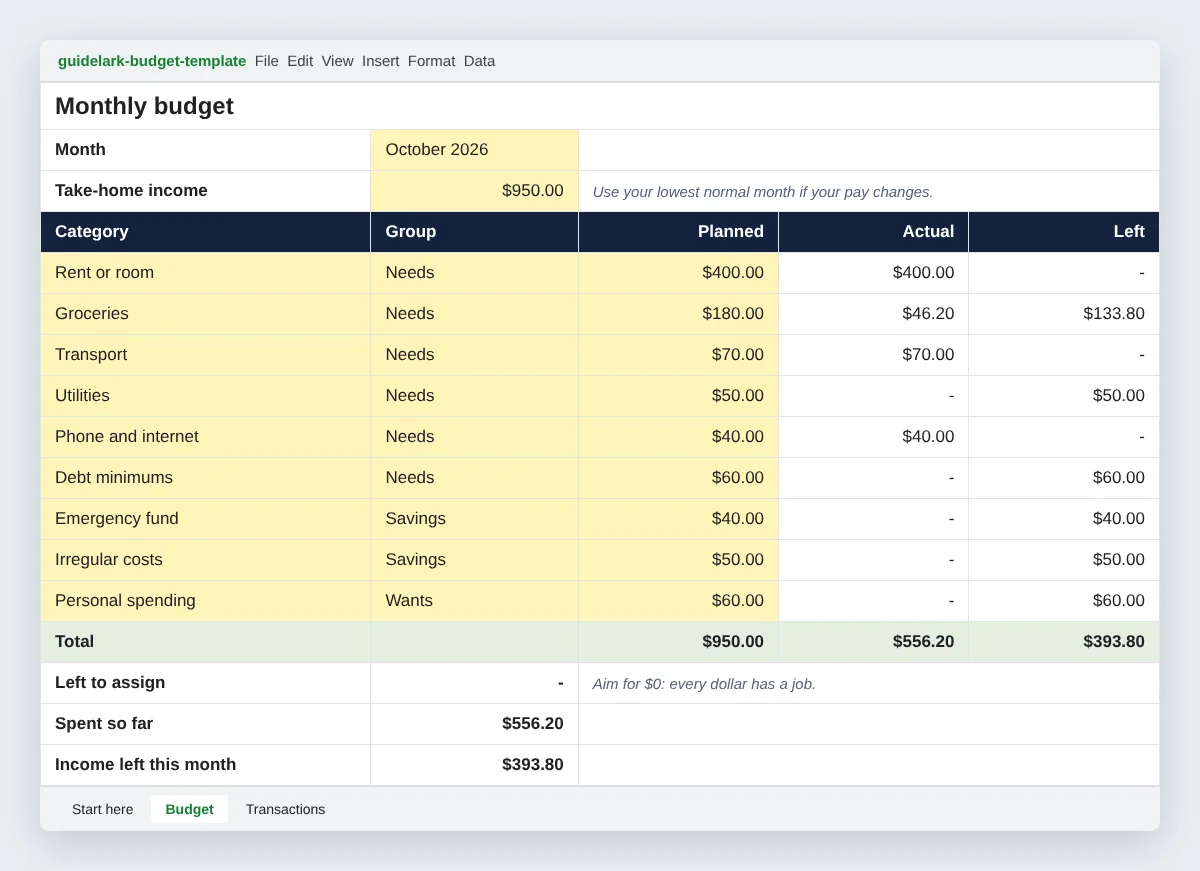
What's inside the template
The file has three tabs.
| Tab | What it does |
|---|---|
| Start here | Five short steps and a reminder of which cells to edit |
| Budget | Your income, a planned amount for each category, and what you have actually spent and have left |
| Transactions | A running list of everything you spend, with a dropdown to pick the category |
Two colours tell you what to do:
- Yellow cells are for you to type in.
- White cells calculate by themselves. Leave them alone and they will keep working.
The example numbers come from the $950-a-month budget in how to make a budget when you earn less than $1,000 a month. They are only there to show the format, so replace them with your own.
How to open it in Google Sheets
- Download the file using the button above.
- Open Google Drive, choose New, then File upload, and pick the file.
- Double-click the file in Drive. It opens in Google Sheets.
- To make it a normal Google Sheet, choose File, then Save as Google Sheets. You can now use it on your phone in the Google Sheets app too.
How to open it in Excel
Download the file and open it. That's it. Excel opens .xlsx files directly, on a computer or in the free Excel mobile app.
How to fill it in (about 10 minutes)
1. Type your month and income
On the Budget tab, type the month and your take-home income: what actually lands in your account after tax.
If your pay changes from month to month, use your lowest normal month. Anything you earn above that is a bonus you can decide about when it arrives.
2. Give every dollar a job
Type a planned amount next to each category. Start with the costs that keep your life running: housing, food, transport and utilities. Then minimum debt payments. Then savings, irregular costs and personal spending.
Keep going until Left to assign shows -, which means $0. That is a zero-based budget: every dollar has a job, including the ones you save. If you'd rather work in percentages, the 50/30/20 rule explains that approach and when it breaks.
3. Rename the categories to fit your life
The category names are only a starting point. Click a yellow category cell and type a new name. Three spare rows called "Other" are there for anything that's missing, such as childcare or a pet.
When you rename a category, the dropdown on the Transactions tab updates by itself.
4. Log what you spend
Every time you spend money, add a line to the Transactions tab: the date, a short description, the category from the dropdown, and the amount.
You don't have to do it at the till. Five minutes every couple of days with your banking app open is enough.
5. Watch the Left column
Back on the Budget tab, Actual fills in automatically and Left shows what remains in each category. If a number in Left turns red, that category has gone over plan. Move money from another category to cover it, or note it for next month.
A quick example
With the four example transactions in the file (rent, one weekly shop, a bus pass and a phone bill), the Budget tab shows:
| Amount | |
|---|---|
| Planned for the month | $950.00 |
| Spent so far | $556.20 |
| Income left this month | $393.80 |
| Left in groceries | $133.80 |
Rent, transport and the phone bill are paid in full, so their Left is zero. Groceries still has $133.80 for the rest of the month, which is the number to watch.
How the formulas work
You don't need to touch the formulas, but knowing what they do makes the sheet easier to change.
- Actual uses
SUMIFS. In plain words: "add up every amount on the Transactions tab whose category matches this row." The formula in the first row is=SUMIFS(Transactions!$D$5:$D$1000, Transactions!$C$5:$C$1000, $A7). - Left is simply Planned minus Actual:
=C7-D7. - Left to assign is your income minus the total you planned:
=B4-C19.
That is all there is. Because the category name links the two tabs, spelling matters, which is why the Transactions tab uses a dropdown.
Starting a new month
At the start of each month, make a fresh copy of the Budget tab:
- Google Sheets: right-click the Budget tab and choose Duplicate.
- Excel: right-click the tab, choose Move or Copy, and tick Create a copy.
Rename the copy with the new month, clear the transactions, and adjust the planned amounts. Most months you will only change a few numbers.
At the end of each month, a short look back makes the next plan better. The 20-minute monthly money review walks you through it.
Tips that keep a spreadsheet budget going
- Log little and often. Ten purchases a week is easy. Forty at the end of the month is a chore you will skip.
- Round to the nearest dollar. Nobody needs the cents to make good decisions.
- Give savings a category. If the emergency fund is a line in the plan, it gets paid like a bill instead of getting whatever is left.
- Don't aim for perfect. The first month will be wrong. That's normal. Fix the numbers and the second month will be close.
Spreadsheet or app?
A spreadsheet is free, private and works everywhere, but you type every number yourself. An app can import transactions from your bank, but the good ones often cost money or work only in some countries. If you are weighing them up, see our comparison of free budgeting apps. Many people start with a spreadsheet to learn their numbers, then decide whether an app is worth it.
More free templates
Once your budget is running, these spreadsheets handle the jobs around it:
- Expense tracker: see where your money really goes, month by month
- Bill tracker: days left until each bill, with a monthly checklist
- Sinking funds spreadsheet: save for yearly and seasonal costs
- Savings goal tracker: monthly amounts and progress bars for each goal
- Emergency fund calculator: how much you need and how long it takes
- Debt snowball spreadsheet: your payoff order and debt-free date
- Biweekly paycheck budget: for people paid every two weeks
See all 24 in one place, or download them in one go, on the free money spreadsheets page.
Frequently asked questions
Is the template really free? Yes. Download it, change it, and share it with anyone.
Does it work on a phone? Yes. Open it in the Google Sheets app or the Excel app. Logging a purchase takes a few seconds.
Does it connect to my bank? No. You type your spending yourself. Many people find that typing it makes them notice it more.
Can anyone else see my numbers? No. The file lives on your computer or in your own Google Drive. Guidelark never sees it.
Can I use it in another currency? Yes. Select the money cells and change the currency format in your spreadsheet app. The formulas don't care which currency you use.
This template is general information, not financial advice. The example numbers are made up to show the format.