Free Savings Goal Tracker Spreadsheet (With Progress Bars)
A free savings goal tracker for Google Sheets and Excel that works out how much to save each month for every goal, with progress bars.

"Save more" is not a plan. "Save $105 a month so the laptop is paid for by March" is. The difference is a target, a date and a monthly amount, and a spreadsheet can work out the third from the first two.
This free savings goal tracker does exactly that for several goals at once, and shows a progress bar that fills up as you save.
Download the free savings goal tracker (.xlsx)
No sign-up and no email needed. It works in Google Sheets and Excel.
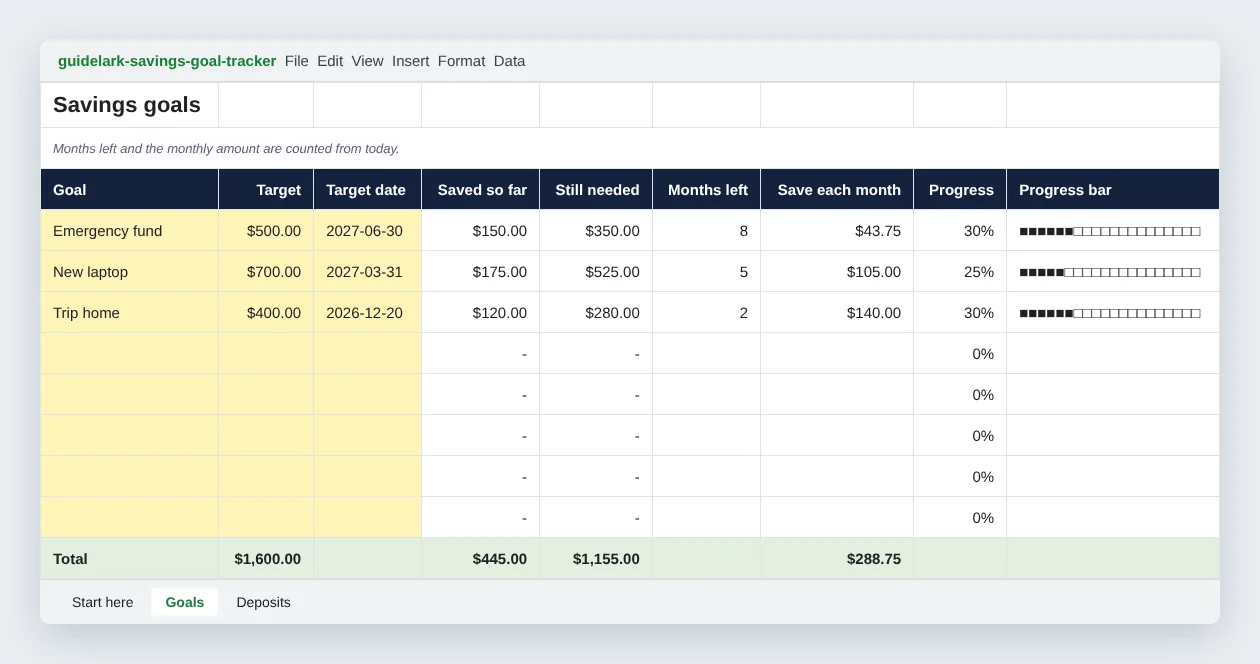
What's inside the tracker
| Tab | What it does |
|---|---|
| Start here | Four short steps |
| Goals | Up to eight goals, each with a target, a date, what you have saved, what is left, the monthly amount needed and a progress bar |
| Deposits | One line each time you save: the date, which goal, and how much |
Yellow cells are for you to type in. White cells calculate by themselves.
How to open it
Google Sheets: in Google Drive, choose New, then File upload, pick the file, double-click it, then choose File, then Save as Google Sheets.
Excel: download the file and open it.
How to use it
1. Write down your goals
On the Goals tab, type each goal with:
- Target, the full amount you need
- Target date, when you need it by
Make the dates honest. A goal you can't fund is just a wish with a deadline.
2. Log every deposit
Each time you move money into savings, add a line on the Deposits tab: the date, the goal (from the dropdown) and the amount. The Goals tab adds them up for you.
If you already have some money saved for a goal, log it as one deposit with today's date.
3. Check the monthly amount
For each goal the sheet shows:
- Saved so far and Still needed
- Months left, counted in whole months from today
- Save each month, which is still needed divided by months left
- Progress, as a percentage and as a bar of 20 squares
At the bottom, the total tells you how much all your goals need each month combined.
4. Make the plan fit your budget
If that total is more than you can afford, change something: move a date later, lower a target, or drop a goal for now. The sheet recalculates as you type.
A worked example
On October 13, 2026, the example goals look like this:
| Goal | Target | By | Saved | Months left | Save each month |
|---|---|---|---|---|---|
| Emergency fund | $500 | Jun 30, 2027 | $150 | 8 | $43.75 |
| New laptop | $700 | Mar 31, 2027 | $175 | 5 | $105.00 |
| Trip home | $400 | Dec 20, 2026 | $120 | 2 | $140.00 |
| Total | $288.75 |
$288.75 a month is a lot on a small income. The trip home is close and can't move, so it stays. The laptop can wait: moving its date to June 30, 2027 gives it eight months instead of five, and its monthly amount drops to $65.63. The total falls to $249.38.
That's the kind of trade-off the sheet is for. You can see what each date costs before you decide.
Note: the months left and monthly amounts are counted from today, so they change as time passes. If you open the file later, the example numbers will be different from the table above.
How the formulas work
- Saved so far uses
SUMIFSto add every deposit on the Deposits tab whose goal matches the row. - Months left uses
DATEDIF(TODAY(), target date, "m"), which counts the whole months between today and the date. If fewer than one month is left, the sheet uses 1, and if the date has passed it says so. - Save each month is still needed divided by months left.
- The progress bar uses
REPT, which repeats a character. It prints a filled square for every 5% you have saved and an empty one for the rest.
Which goals to put first
When money is tight, order matters more than the spreadsheet.
- A starter emergency fund. Without one, every surprise becomes debt, and debt eats the money meant for your other goals. Our guide to building an emergency fund on a small income explains why $500 is a sensible first target.
- Costs you know are coming, like an annual bill or a trip with a fixed date. These are sinking funds, and the sinking funds spreadsheet is built for them.
- Wants with flexible dates, like a new phone or a laptop. These are the goals to stretch when the total is too high.
Whatever the order, add the monthly total to your budget as a line of its own, so saving gets paid like a bill. The free monthly budget template has a row for it.
Tips that help the money stay saved
- Save on payday. Move the money the day you get paid, not at the end of the month when it might be gone.
- Keep savings out of sight. A separate savings account, ideally at a different bank, makes it harder to dip in by accident.
- Log every deposit. Watching the bar fill up is half the motivation.
- Celebrate finished goals. When a bar is full, delete the row and start the next goal. It feels good, and it should.
Frequently asked questions
Is the tracker free? Yes. Download it, change it and share it.
Do I need a separate bank account for each goal? No. One savings account is fine. The spreadsheet keeps track of which part belongs to which goal.
What happens if I take money out? Log it on the Deposits tab as a negative amount, for example -50. Saved so far goes down, and the monthly amount goes up to make up for it.
What if a goal has no date? Leave the date empty. The sheet then shows the full amount still needed as the monthly figure, which is a reminder to pick a date.
This tracker is general information, not financial advice. The example numbers are made up to show the format.